I am often asked how I organize my time–how I get things done. Over the past few years I’ve invested quite a bit of time in trying to find a system that works for me and along the way have had plenty of stops and starts. But I thought today I’d share the system I’ve put into place since it seems to be working quite well. I am not by nature an organized person so I’ve had to rely on a system like this one to keep me going. So here it is, my rather eclectic way of getting things done.
 Hardware
I am a Mac user, so my hardware is Apple-based. Before I tell you about it, let me explain why there is so much of it. For many years I was running quite a high-volume web design business and this required a lot of equipment. I’m no longer doing web design, but still have much of the equipment (such as the iPad and MacBook). So while I use quite a few different pieces of hardware, I could just as easily make do with just two: a MacBook and an iPhone.
A key to my system is having a way of either doing work or capturing to-do items in the major contexts I find myself in. So at home and at the church office I’ve got an iMac and in my pocket I’ve got an iPhone (an older one, but I’m going to wait out my contract). If I need to go mobile, such as when I speak at a conference or head to a coffee shop, I take the MacBook (which Aileen uses most of the time). At this time the iPad does not play a major role in my productivity.
Of course the hardware is merely a means to access software.
 OmniFocus
One of the great benefits of using a Mac is the abundance of top-notch software, and especially task management software based on the GTD (Getting Things Done) model. Having tried many of them, and having a rather light commitment to the key components of the GTD model, I’ve settled on OmniFocus. This is the software I use to record what I need to get done and to organize the many tasks and projects I’ve got on the go. I have folders for each area of my life (Family, Church, Blog, Writing, Speaking, etc) and within those folders there are projects and task lists.
OmniFocus offers several features that I depend upon:
- Mobile. There are versions of OmniFocus for the desktop, iPhone and iPad. I plan to buy the iPad version when or if it fits the budget, but for now just use the iPhone version on both the iPhone and iPad. The iPhone app allows me to add new tasks by recording a voice memo, something that is hugely helpful when I am driving (and it’s amazing how many things I remember when I’m behind the wheel).
- Cloud. It’s not perfect (it will only sync when you open the program on your mobile device) but it’s far better than Things or the other close competitors. This allows me to access my to-do list when I am at home or when I am out and about.
- Contexts. Because I work from a home office and a church office, one of the features I depend upon is contexts. OmniFocus encourages you to create different contexts for your tasks. Contexts are largely geographical, but they can also be situational or, well, contextual. Some of my contexts are Home, Home Office, Church, Church Office, Errands, and so on. I’ve also got contexts for Elder Meetings (which is a situation, not a place) and even for certain people. When I am about to head out in the car, I just check the Errands context and I am immediately reminded of other things I need to while I’m out and about. When I get to church I check the Church Office context and see a list of the tasks I need to do there.
OmniFocus has a bit of a steep learning curve but once you understand the concepts and find a workflow that works for you, it is very, very useful and extremely powerful. It aptly fulfills that great principle from GTD that you need to get tasks out of your mind and into a system.
 iCal
iCal
iCal is Apple’s standard calendar. I could probably just as easily use Google Calendar, but I stick with iCal as I love its ability to sync with all of my devices (and yes, I know Google can do the same). I use iCal to record appointments and, occasionally, to record tasks for which I absolutely need a reminder that will appear on whatever device I am using at the time. I have separate calendars for me, for Aileen and for the family.
 GMail
GMail
I continue to use GMail as my email service. I seek to maintain an empty inbox, meaning that I process email a few times a day and try to completely empty it. If there are emails that demand some lengthy action, I will archive the email and add a reminder to OmniFocus. Occasionally I cheat and boomerang. I use GMail within the browser instead of using Mail or Sparrow or any of the other apps. I have found that using the keyboard commands allows me to fly through processing email. Ideally I’d love to separate browsing from email, but to this point I haven’t found a great way of doing that.
One of my constant battles is to restrain myself from checking email throughout the day. When I’m at my best, I check in just a few times a day at pre-determined times. But I generally lose that battle. I’m working on it.
Workflow
So let me tell you how I coordinate all of these things.
Every Sunday evening Aileen and I sync our calendars (ideally; we don’t always remember or have the opportunity). What I mean by this is that we get together for just a few minutes and plan the week ahead. I have my calendar (usually on the iPad) and she has her calendar (she uses this paper calendar) and we each make a note of whatever we know will be happening in the week ahead. Aileen plans out her major task for each day and puts them on paper. We make sure that we can each use the car when we need it and that we don’t have overlapping appointments. We learned the importance of doing this through hard experience.
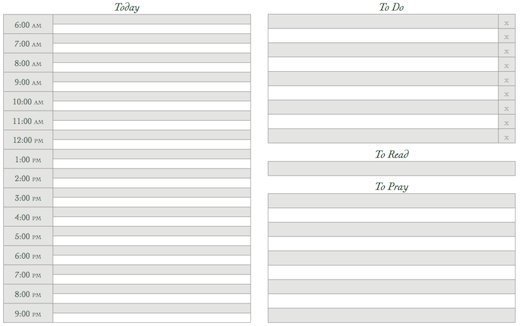
Every evening I reference iCal and OmniFocus and write out all I need to do the next day on a daily task list. I purposely go low-tech on this as I find there is value in actually writing out what I’ll be doing the next day. I mark appointments on the calendar, fill in my tasks, plan out what I’ll be reading in the Bible and what I’ll be praying for. Here’s what that form looks like (click on it to download a PDF). I keep this paper with me throughout the day. It doesn’t matter if it gets beat up or crumpled or doodled on since the next day I’ll print out a new one.
OmniFocus and iCal are always open on my desktop computers and I refer to them, at minimum, at the beginning and end of each work day. As soon as I get to my desk in the morning I check in with OmniFocus to see what, if anything, is due that day, or is due to be started, even though I should have already recorded this the evening before.
As I enter a new context through the day–when I arrive at the church office, when I head out to do errands–I check the appropriate context in OmniFocus, even if I am quite sure there is nothing there. That way I remember to pick up that light bulb or put that package in the mail.
On Monday mornings I spend a few minutes maintaining OmniFocus. This involves cleaning up the inbox, deleting completed tasks, making sure tasks have the appropriate contexts assigned to them, and so on. But other than that, it takes just the few minutes to plan each evening.
And I guess that is pretty much the system. It is undoubtly highly individualized and it is always in some amount of flux. But at the end of the day it works for me and it keeps me both focused and organized.